Tempo Kit 2.0: Custom Dashboards, Widgets, Pomodoro & Full-Screen Practice
Build your own practice workspace in the side panel or Dashboard. Arrange 22 widgets, create pages for different routines, count reps, run focus cycles, and give individual tools the whole screen.
6 min read
The Practice Dashboard
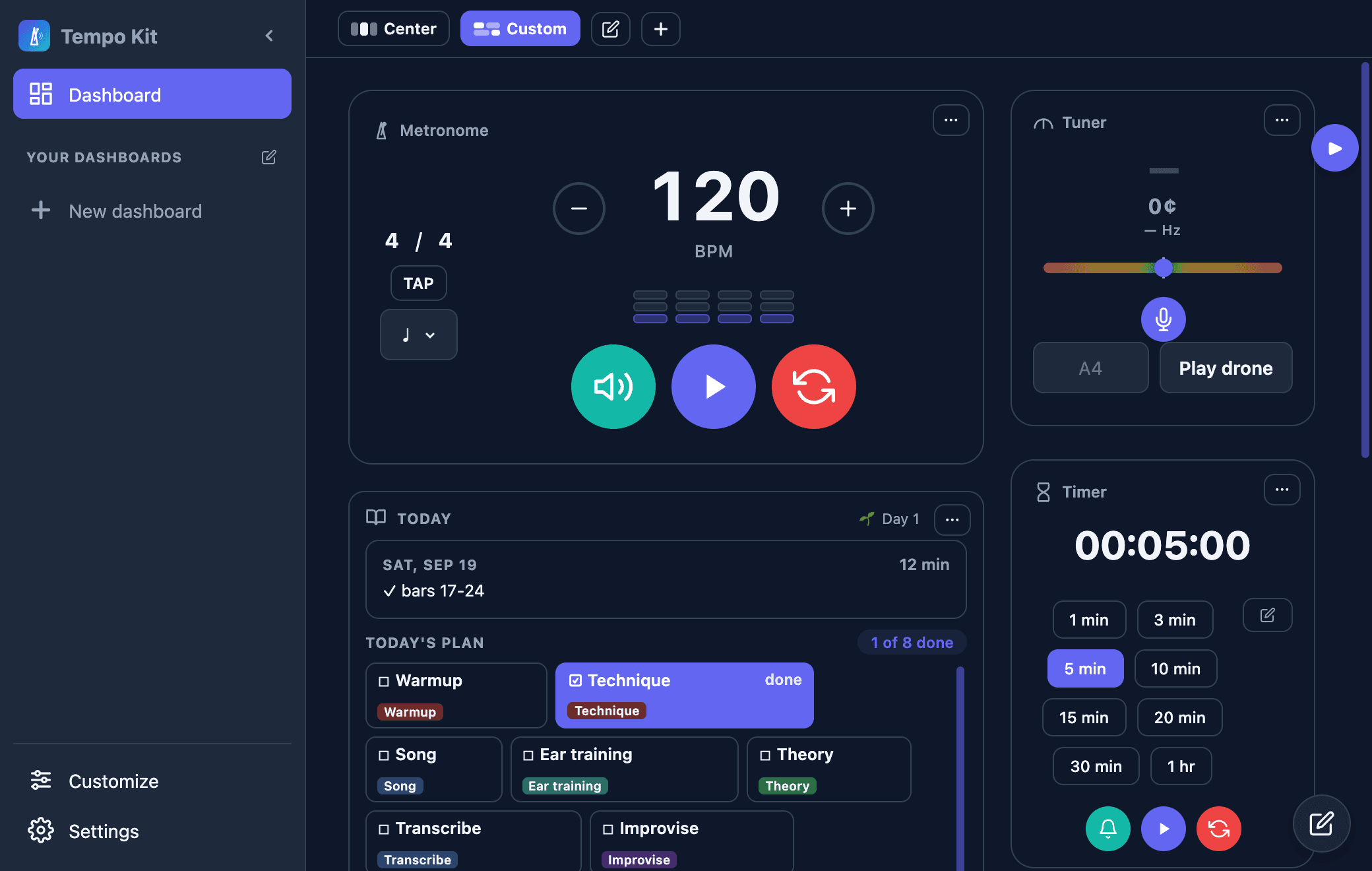
The Dashboard opens Tempo Kit in a full browser tab, giving your practice tools much more room than the side panel. Instead of one fixed layout, you can build different pages around the way you practice: a metronome and reps counter for drills, a tuner and drone for intonation work, or a session clock, Today card, and stats for reviewing practice.
Choose a Center or Custom layout, then use Edit to move, resize, or remove widgets. Create named Dashboard pages for different instruments, routines, pieces, or practice goals. You can even place another view of the same tool in a different part of your workspace.
Journal widgets show the practice you record; simply opening the Dashboard does not create a practice session.
Customize Your Sidebar Too
The Dashboard is only one half of the new workspace system. Tempo Kit 2.0 also makes the browser side panel customizable. The Customize screen lets you reorder or hide tabs, rename pages, and choose the widgets that appear on each page. Your everyday side panel can stay compact while the Dashboard becomes the larger workspace you open when you want more room.
All 22 widget types can be placed in the Free side panel, subject to each tool's own Free or Pro limits. Pro unlocks the full Dashboard, custom Dashboard pages, unlimited custom Dashboard and Sidebar tabs, and Full Screen widget mode.
22 Widgets, One Workspace
Tempo Kit 2.0 includes 22 widgets covering tools, practice planning, your Journal, and your libraries: metronome, tap tempo, timer, stopwatch, Pomodoro, tuner Gauge, tuner Notes, tuner Trace, drone, videos, session, Today, streak, reps, checklist, stats, insights, recap, presets, set lists, notes, and recordings.
Each widget can be placed where it makes sense for your routine. Many have multiple sizes and Display settings, so a tool can be a compact control on one page and a larger view somewhere else.
- Add what you need: Choose a widget and preview the sizes available for it.
- Build around the routine: Put your most-used tools together instead of jumping between separate pages.
- Create different workspaces: Keep separate pages for warmups, technique, repertoire, recording, or review.
- Change it later: Reorder, resize, hide, or replace widgets as your practice changes.
The Rep Counter
Repetition helps build muscle memory, but counting can pull your attention away from technique. The rep counter keeps a visible tally.
Name a counter, set a goal if you want one, and tap + or − as you work. The card shows each count or progress toward its goal. It counts the reps you enter; it does not listen for or detect repetitions automatically.
Pomodoro and the Timer
Use the timer for a single countdown or Pomodoro for alternating focus and break periods. The Pomodoro widget shows the current phase, remaining time, and cycle progress, with controls to pause, skip, or mute the bell. Its settings let you adjust the focus, short break, long break, and cycle lengths. Saving your own Pomodoro presets is a Pro feature.
For example, use a focus block for slow passage work, take the break when it arrives, then start the next block at a slightly faster tempo. Start a journal session separately if you want that practice time recorded in your history.
Full Screen Practice
When one tool needs your attention, open its Display settings and choose Full Screen. A large timer or metronome is easier to read from across the room, while the rest of the dashboard stays out of sight. Mini controls remain available when you need another tool without leaving the focused view. Full Screen widget mode is part of Pro.
Mini Controls Dock
The old mini control drawer is now a Dock designed to work alongside widgets and Full Screen mode. Keep another tool within reach while the main workspace stays focused, such as a small metronome control while your tuner fills the screen. Free can keep one Dock slot open at a time; Pro can keep multiple controls available.
Connecting the Tools
The real power of Tempo Kit comes from combining these tools. Try using the metronome alongside the rep counter to steadily increase your speed over a set number of repetitions. Or, combine the tuner and metronome for advanced intonation practice.
Explore the tools in more detail: camera recordings, sheet music and presets, tuner Notes and Trace, and the updated Practice Journal. Already installed? See how to update your browser extension. Or read about why Tempo Kit exists.
Or skip the setup and practice in one panel
Tempo Kit puts the metronome, tuner, drone, timer, and the video controls in a single browser side panel beside whatever you're learning, and logs the session for you while you play. Free core tools, no account.
Keep reading
Free Online Metronome for Music Practice
A metronome you can use on this page right now, plus what to look for in one (subdivisions, accents, tempo ramps) and why a browser tab is a bad place to keep it.
Browser Guitar Tuner: Setup and Troubleshooting
How browser tuners work, why yours reads the wrong string, and what to do when the note is right but the chord still sounds wrong.
How to Read a Tuner: Which Way to Turn
The number, the needle, and the note name: what each one is telling you, and how to know whether you are sharp or flat without guessing.
Metronome BPM Chart: Tempo Markings Explained
Largo to prestissimo with real BPM ranges, the modifiers that bend them, and a metronome on the page so you can hear any tempo you just read about.
Camera Recordings in Tempo Kit 2.0: Review and Keep Your Takes
Record a camera take, play it back, download it, and keep useful recordings with your practice.
Keep Sheet Music and Practice Sources in Tempo Kit Presets
Attach scores, lesson links, and backing tracks to a preset alongside your practice setup.